
Welcome to Schedu Help Centre
We’re here to make scheduling meetings and managing events easier and faster for you. Find answers, guides, and tips to help you get the most out of Schedu.

'%3e%3cpath%20d='M202.7%200.241516H54.1377V36.3426H202.7V0.241516Z'%20fill='%23E6E6E6'/%3e%3cpath%20d='M58.0352%2032.4445H198.801V4.13965H58.0352V32.4445Z'%20fill='white'/%3e%3cpath%20d='M84.8469%2029.0756C90.8025%2029.0756%2095.6304%2024.2476%2095.6304%2018.2921C95.6304%2012.3366%2090.8025%207.50867%2084.8469%207.50867C78.8914%207.50867%2074.0635%2012.3366%2074.0635%2018.2921C74.0635%2024.2476%2078.8914%2029.0756%2084.8469%2029.0756Z'%20fill='%2300D8CE'/%3e%3cpath%20d='M182.774%2014.0724H110.634V16.4167H182.774V14.0724Z'%20fill='%2300D8CE'/%3e%3cpath%20d='M182.774%2020.1675H110.634V22.5117H182.774V20.1675Z'%20fill='%2300D8CE'/%3e%3cpath%20opacity='0.5'%20d='M0%2055.1119L125.701%2064.2808V97.2851L0%2094.9509V55.1119Z'%20fill='%23E6E6E6'/%3e%3cpath%20opacity='0.5'%20d='M3.95996%2090.7464L122.957%2093.6568V67.66L3.95996%2059.6791V90.7464Z'%20fill='white'/%3e%3cpath%20opacity='0.5'%20d='M30.0777%2064.9959C31.4515%2065.0846%2032.7894%2065.4719%2033.9981%2066.131C35.2104%2066.7937%2036.2858%2067.6805%2037.1672%2068.7444C38.0832%2069.845%2038.8006%2071.0967%2039.2875%2072.4433C39.8011%2073.8601%2040.0632%2075.3558%2040.062%2076.8628C40.0674%2078.347%2039.805%2079.8201%2039.2875%2081.2111C38.8075%2082.503%2038.0881%2083.6928%2037.1672%2084.7182C36.2829%2085.7035%2035.2038%2086.4947%2033.9981%2087.0416C32.7671%2087.5944%2031.4265%2087.8598%2030.0777%2087.8177C28.6973%2087.774%2027.3436%2087.4261%2026.1131%2086.7991C24.8666%2086.1617%2023.7558%2085.2884%2022.8421%2084.2277C21.8835%2083.1189%2021.131%2081.8476%2020.62%2080.4738C20.0778%2079.0229%2019.8007%2077.4863%2019.8019%2075.9374C19.7958%2074.4115%2020.0733%2072.8978%2020.62%2071.4732C21.1244%2070.1576%2021.8793%2068.9523%2022.8427%2067.9241C23.7603%2066.9444%2024.8751%2066.1701%2026.1136%2065.6524C27.3676%2065.1339%2028.7236%2064.9093%2030.0777%2064.9959Z'%20fill='%23E6E6E6'/%3e%3cpath%20opacity='0.5'%20d='M53.4893%2073.1624L111.406%2076.1805V78.3741L53.4893%2075.5602V73.1624Z'%20fill='%23E6E6E6'/%3e%3cpath%20opacity='0.5'%20d='M53.4893%2079.3975L111.406%2081.8837V84.0773L53.4893%2081.7953V79.3975Z'%20fill='%23E6E6E6'/%3e%3cpath%20opacity='0.5'%20d='M0%20122.158L125.701%20119.824V152.829L0%20161.998V122.158Z'%20fill='%23E6E6E6'/%3e%3cpath%20opacity='0.5'%20d='M3.95996%20157.43L122.957%20149.449V123.455L3.95996%20126.365V157.43Z'%20fill='white'/%3e%3cpath%20opacity='0.5'%20d='M19.8099%20140.646C19.871%20139.098%2020.21%20137.574%2020.8108%20136.146C21.375%20134.801%2022.177%20133.568%2023.1785%20132.507C24.1316%20131.494%2025.2744%20130.677%2026.5421%20130.104C27.7959%20129.539%2029.1595%20129.26%2030.5342%20129.288C31.8833%20129.315%2033.2086%20129.649%2034.4099%20130.264C35.5911%20130.873%2036.6345%20131.719%2037.4755%20132.748C38.3526%20133.82%2039.0221%20135.047%2039.4497%20136.364C39.9102%20137.78%2040.1134%20139.267%2040.0496%20140.755C39.9918%20142.26%2039.6711%20143.744%2039.1021%20145.139C38.5639%20146.462%2037.7977%20147.679%2036.8384%20148.737C35.9171%20149.757%2034.8083%20150.591%2033.5723%20151.193C32.338%20151.792%2030.987%20152.112%2029.6153%20152.129C28.2569%20152.146%2026.9129%20151.851%2025.6862%20151.267C24.4707%20150.684%2023.391%20149.852%2022.5172%20148.825C21.5982%20147.746%2020.8947%20146.501%2020.4449%20145.157C19.9577%20143.705%2019.7425%20142.176%2019.8099%20140.646Z'%20fill='%23E6E6E6'/%3e%3cpath%20opacity='0.5'%20d='M53.4893%20135.314L111.406%20133.032V135.226L53.4893%20137.712V135.314Z'%20fill='%23E6E6E6'/%3e%3cpath%20opacity='0.5'%20d='M53.4893%20141.549L111.406%20138.736V140.929L53.4893%20143.947V141.549Z'%20fill='%23E6E6E6'/%3e%3c/g%3e%3cdefs%3e%3cclipPath%20id='clip0_439_32514'%3e%3crect%20width='203'%20height='161.758'%20fill='white'%20transform='translate(0%200.241516)'/%3e%3c/clipPath%3e%3c/defs%3e%3c/svg%3e)

1. Getting Started
2. Scheduling & Meetings
3. Subscription
4. Team Management
5. Schedu Integration
6. FAQS
7. Need More Help?
Getting Started

1. What is Schedu?
Schedu is your all-in-one platform for meeting scheduling and event management. Whether setting up a one-on-one call, team meeting, or selling tickets to an event, Schedu helps you automate and simplify the process.

2. How do I sign up for Schedu?
Getting started is easy! Visit Scheduapp.com/signup to create your free account. You can explore all core features immediately or enjoy a 30-day free trial of premium features to supercharge your experience.
Scheduling & Meetings
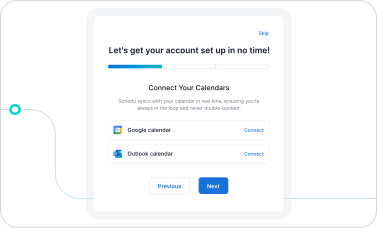
3. Connecting Calendar
You can link your calendar during the onboarding process when signing up, or later by visiting the Integrations section within the app to connect your preferred calendar, such as Google Calendar or Microsoft Outlook Calendar.
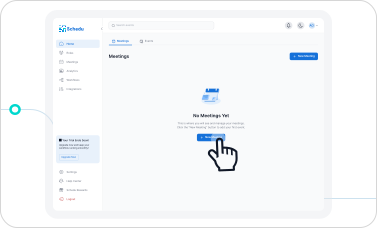
4. How do I create a meeting link?
After logging into your dashboard, click "New Meeting." You can schedule
One-on-One Meetings
Group Meetings
Round Robin Meetings
Meeting Polls (where invitees select the best time)
Subscription
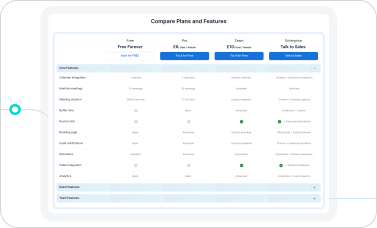
5. Understanding Subscription Plans
Compare features across Pro, Team, and Enterprise tiers to choose the right plan for your needs.
Compare Plans and Features

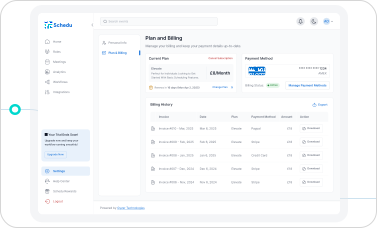
6. Managing Your Subscription
From your Account Settings, navigate to the Plan and Billing page where you can
Upgrade to access more features
Downgrade to a lower plan
Cancel or pause your subscription as needed
Add additional team members for team plans
Team Management
7. Adding/Removing Team Members
Admins can easily invite or remove users through the Team Settings by navigating to the Roles page, where they can assign roles such as
Owner
Super Admin
Admin
Manager
Host
Validator
Viewer
8. Managing Team Subscriptions
You are billed based on active users only. You can add or remove users anytime, charges adjust automatically.
Schedu Integration
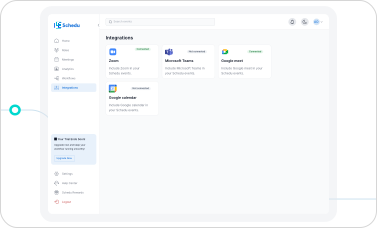
9. Online Meeting Location Integration
You can integrate your favourite video tools like Zoom, Google Meet, and Microsoft Teams for a seamless scheduling experience. This can be set up during the onboarding process or later through the Integrations page within the app
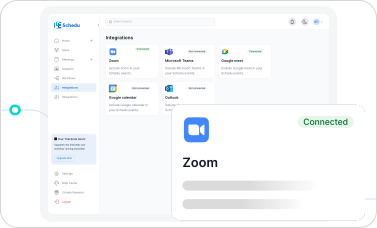
10. Zoom
From your Schedu dashboard
Look for "Integrations" on the left side menu and click it.
Find the Zoom option and click it
Select "Connect Zoom"
Sign in to your Zoom account when prompted
Allow Schedu to access your Zoom
Done! You"ll return to Schedu with confirmation
Show more
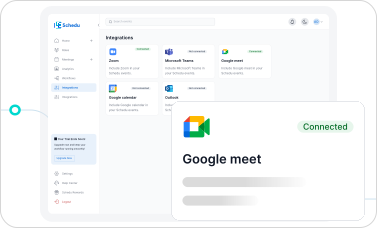
11. Google Meet
From your Schedu dashboard
Look for “Integrations” on the left side menu and click it.
Find the Google Meet option and click it
Select “Connect Google Meet”
Sign in or select your preferred Google account
Allow Schedu to access your Google account
Done. You’ll return to Schedu with confirmation

12. Google Calendar
From your Schedu dashboard
Look for “Integrations” on the left side menu and click it.
Find the Google Calendar option and click it
Select “Connect Google Calendar”
Sign in or select your preferred Google account
Allow Schedu to access your Google account
Done. You’ll return to Schedu with confirmation

13. Microsoft Teams
From your Schedu dashboard
Look for “Integrations” on the left side menu and click it.
Find the “Teams” option and click it
Select “Connect to Teams”
Sign in to your Microsoft account
Allow Schedu to access your Microsoft account
Done. You’ll return to Schedu with confirmation
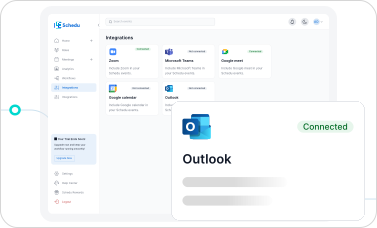
14. Outlook Calendar
From your Schedu dashboard
Look for “Integrations” on the left side menu and click it.
Find the “Outlook Calendar” option and click it
Select “Connect to Outlook Calendar”
Sign in to your Microsoft account
Allow Schedu to access your Microsoft account
Done. You’ll return to Schedu with confirmation
FAQs
How can I change from an individual account to a team account?
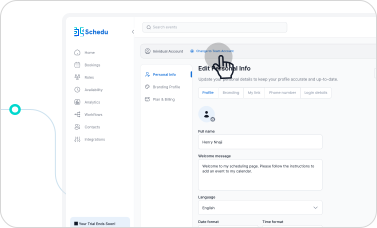
From your Schedu dashboard.
Navigate to Account Settings.
Click on “Change to Team Account.”
Enter your Team Name.
Add a Team Description. (Optional)
Add team members to invite them immediately.
Click the “Change to Team Account” button to complete the process.
Need further assistance?🤔
Chat with us live!
Email: support@scheduapp.com
Visit our Blog for best practices and tips!
Be Among the First
to Try Schedu
Get early access to all premium features



Meetings, events, seamlessly scheduled.
Resources
Social Media



2026 ©Schedu All Rights Reserved..